
Been awhile since my last post, work and time off have been consuming a lot of my time.
That being said, lately I have been doing a lot with Copilot Studio, so I thought I would share with you my first autonomous agent created with Copilot Studio. 👏
Before we get started, let’s answer the question, “What is an autonomous agent?“
In Copilot Studio, an autonomous agent is an AI-driven solution designed to handle and automate complex business processes. These agents actively support workflows, reduce manual effort, and adjust dynamically to changing needs. Whether it’s data processing, decision-making, or workflow orchestration, they help drive efficiency and innovation—working alongside human expertise while minimizing the need for constant oversight.
Let’s look at another way to say it. 👀
An autonomous agent in Copilot Studio is a smart computer helper that can do complicated tasks on its own—like organizing data or making decisions—so people don’t have to do everything themselves, and it can change what it does if things around it change.
With that out of the way, let’s look at the agent that I built and how I did it.
Define the Agent 🧠
The first thing I like to do when I approach agent building is to define the purpose of the agent and the intended audience.
The purpose of my agent is to assist content editors, people creating content and labs for workshops, in the creation and management of workshop artifacts.
I then define the outcome of the agent.
This agent will automate this process by monitoring the submission mailbox, handle attachments and respond to the sender letting them know the workshop request has been accepted and is under review.
And finally, I identify the actions the agent is responsible for handling.
- The agent will monitor an Outlook 365 mailbox that handles workshop communications, the agent will look for emails with the subject
New Workshop Request.- Any attachments on the email need to be stored in OneDrive.
- The agent will retrieve details about the message received and any attachments.
- The agent will summarize any attachments.
- The agent will send a reply to the sender with summary information about their workshop submission and that it is currently under review.
- The agent will mark the email as read and archive it.
Build the Agent ⚒️
Now let’s build the agent.
I am calling my agent, Workshop Agent, and for now, the Instructions are fairly simple: This agent helps instructors with workshop creation and management.
I added an Event trigger, which I named When a New Workshop Request email arrives.
This is where things got a little tricky, how do I handle the attachments? 🤔
I tried to pass them into the agent, but they were too large, the agent complained about the file size. 😤
So maybe I could or should or have to save the attachments to OneDrive?
I struggled with how exactly to do this! It should be easy?! For some reason things just weren’t click in my brain!
I decided to install the Document Processor (preview) managed agent and see what I could glean from its implementation on handling the attachments, and that’s where I discovered my answer. 💡

I ended up looping through each message and then each attachment on the message, I then stored it OneDrive and sent both the Id from the message and the Id of the document to the agent for processing.

Before I added Instructions, I first created all the Tools my agent was going to need to process the request.
I started with four Tools of Type Connector, for handling the emails.
- Get New Workshop Request Email – Retrieves an email based on a provided Message Id.
- Send a New Workshop Request Receive Email – Sends a reply message back to the sender letting them know their submission has been received.
- Mark the New Workshop Request email as read – Marks the message as
Read. - Archive the New Workshop Request email – Moves the message to the Archive folder.
For the most part, I left the Inputs for Fill using to Dynamically fill with AI, but there were a couple of exceptions:
- For Mark the New Workshop Request email as read I set Mark as to
Custom Valuewith a value oftrue. - For Archive the New Workshop Request email I set Mark as to
Custom Valuewith a value ofArchive. Note, this value changes to the Id of the folder, for ALM purposes, I would use an Environment Variable to handle this value.


I added another Tool of Type Connecter, called Get New Workshop Request document, to handle the retrieval of the document from OneDrive.

The last thing I needed to do was add a Tool of Type Flow, called Summarize the New Workshop Request document to call my Agent Flow, called Summarize the New Workshop Request document.
Let’s take a peek at the Agent Flow.
The Agent Flow takes a single input called DocumentId, which it expects will be the Id of the file stored in OneDrive that needs to be summarized.

It then runs a Prompt, called Summarize New Workshop Request document, to summarize the document and returns the generated Summary to the agent.


With all the Tools created, I could now focus on the Instructions.

It took several iterations to get the Instructions tweaked to handle the automation, but I eventually came up with a working set of Instructions.
I specifically called out the Tools I wanted to use for each task, along with some additional guidance where sometimes an incorrect input value was used.

W00t! W00t! Magic was happening! 🪄
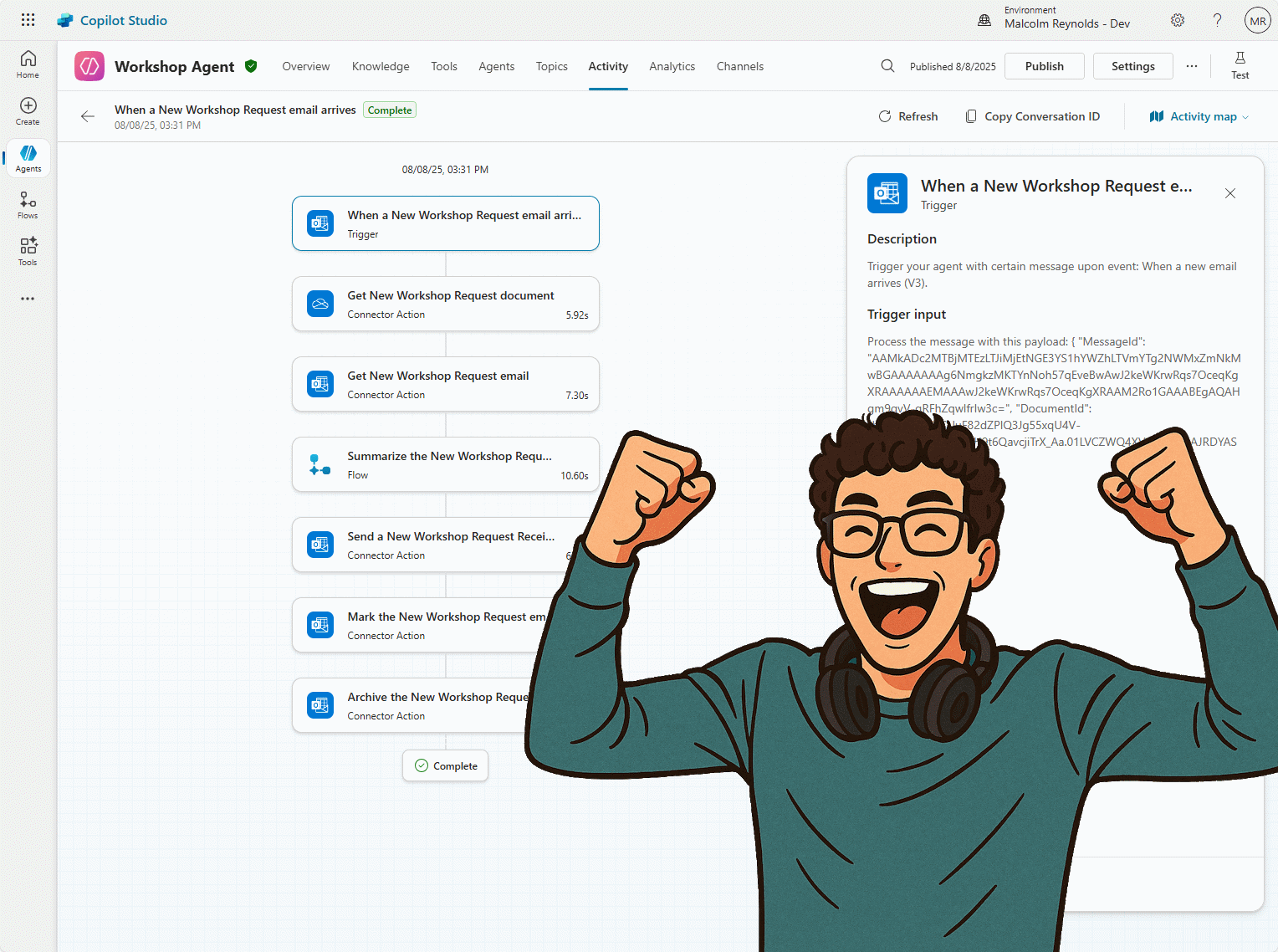
Let’s look at what a complete run looks like under the Activity tab.

And that folks, was my first autonomous agent! Definitely some cool functionality! 🥳
Already thinking of other ideas where I can leverage autonomous agents in my day-to-day activities along with areas of opportunity across my organization.
You can download the complete solution at https://mattruma.com/wp-content/uploads/2025/08/WorkshopAgentSolution_1_0_0_2.zip.
Thanks for reading! And as always, feedback is much appreciated!
Want to learn how to create your own autonomous agent? Check out Build an Autonomous Agent in Copilot Studio – Training | Microsoft Learn.
Discover more from Matt Ruma
Subscribe to get the latest posts sent to your email.
1 Reply to “Adventures with Copilot Studio: My First Autonomous Agent”