I want to add some additional functionality to the autonomous agent I created in my last post, Adventures with Copilot Studio: My First Autonomous Agent, I wanted to allow the user to upload a document and then validate whether the document was compliant or not. ✔️
The uploaded document, Workshop Data Sheet, would include all the information about a new workshop that was being submitted for review.
This needed to be compared to another document, Rules and Regulations, that contained all the requirements for a valid submission.
Some of the requirements included:
- Must have title.
- Must have a description.
- Must have an estimated number of days or hours.
- Must have executive sponsorship.
For each requirement I provided a description and a sample of what an acceptable response might look like.

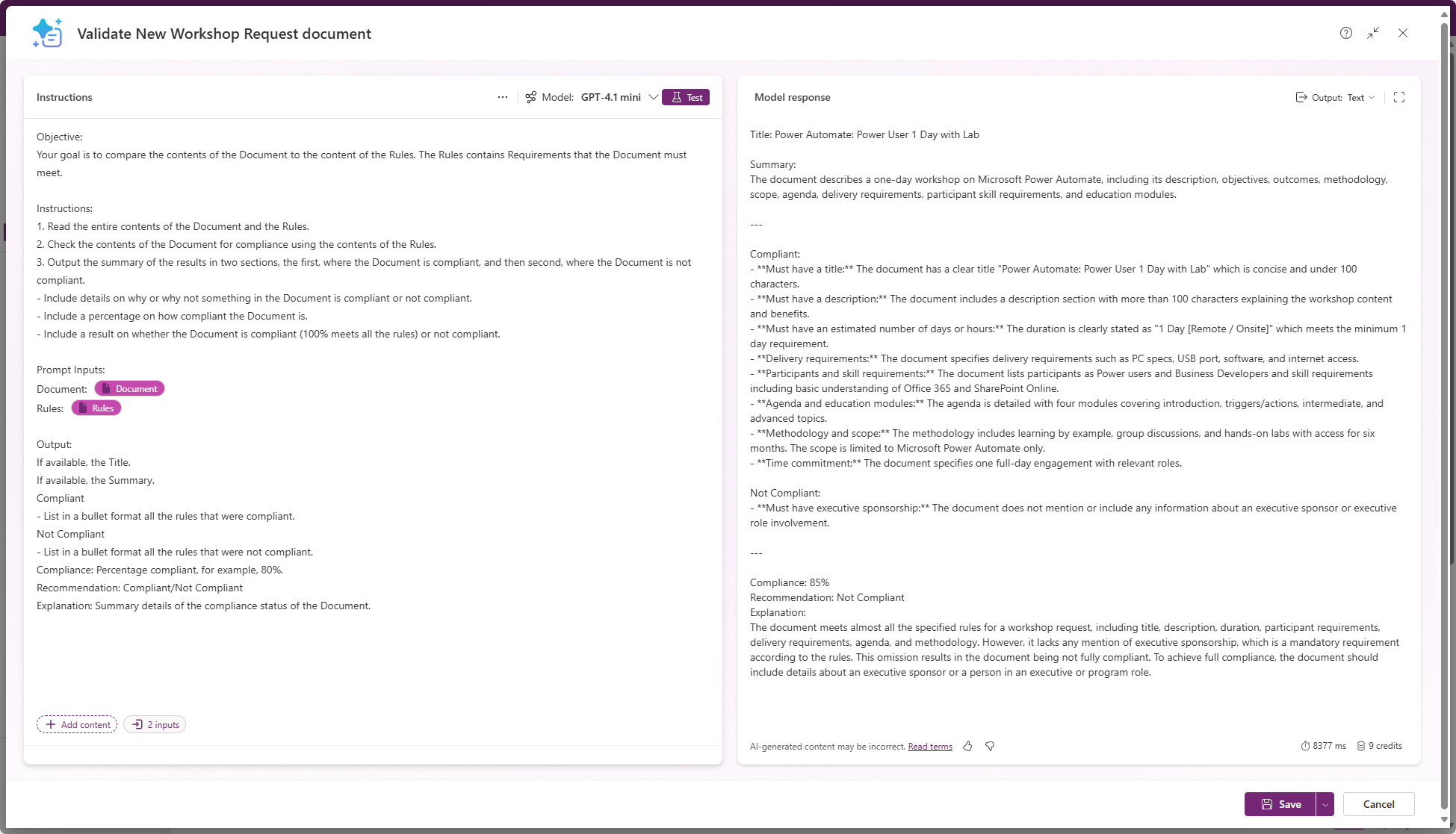
The way I was going to accomplish the compliance validation was with a Prompt 🧠, see Prompts overview | Microsoft Learn for more information.
The Prompt would accept two file inputs, on for the Workshop Data Sheet 📄 and the other for the Rules and Regulations ⚖️.

Took me several iterations to get the Prompt to generate consistent and accurate results, but once complete, the response was pretty awesome! 🪄

Now to wire it up to my Copilot Studio Agent.
To call my Prompt I would need to create an Agent Flow.
The Agent Flow is fairly simple, the trigger takes a Document Id, which points to the Workshop Data Sheet which will be saved in OneDrive.
It then loads both the Workshop Data Sheet and the Rules and Regulations and then passes them to the Prompt.
The Response is then returned to the Agent.

I added the Agent Flow as a Tool 🔨 to my Agent.

Now to create a Topic to handle all the magic. 🪄
I created a Topic called Compliance Check, and changed the Trigger to An activity occurs.
I set the Condition to use the variable Activity.Attachments where it has value.

I then looped 🔁 through each Attachment, as more than one could have been uploaded.
The Topic then processes each Attachment in the following way:
- Upload the Attachment to OneDrive.
- Pass the Id of the created file in OneDrive to the Validate New Workshop Request document tool.
- Output the response to the user.
I added an End current topic node to the Topic to prevent the Agent from generating an ambiguous message that it didn’t understand the request.
Let’s test it out! 📣
I am going to just go for broke and upload two files.

The Agent processes each file and outputs the compliance results for the win!🏆

One thing to point out, the Prompt file inputs will be limited based on size, must be less than or equal to 25MB and number of pages, must be less than or equal to 50 pages.
If there is a better way or an area for improvement, please share!
Discover more from Matt Ruma
Subscribe to get the latest posts sent to your email.