
I wanted to create my own Power BI 📊 report from the data collected by the Copilot Studio Kit.
To start with I just wanted a list of agents, and that data was stored in the Agent Details table in Dataverse.

I hopped over to My workspace in Power BI, and clicked New Item. 🛠️
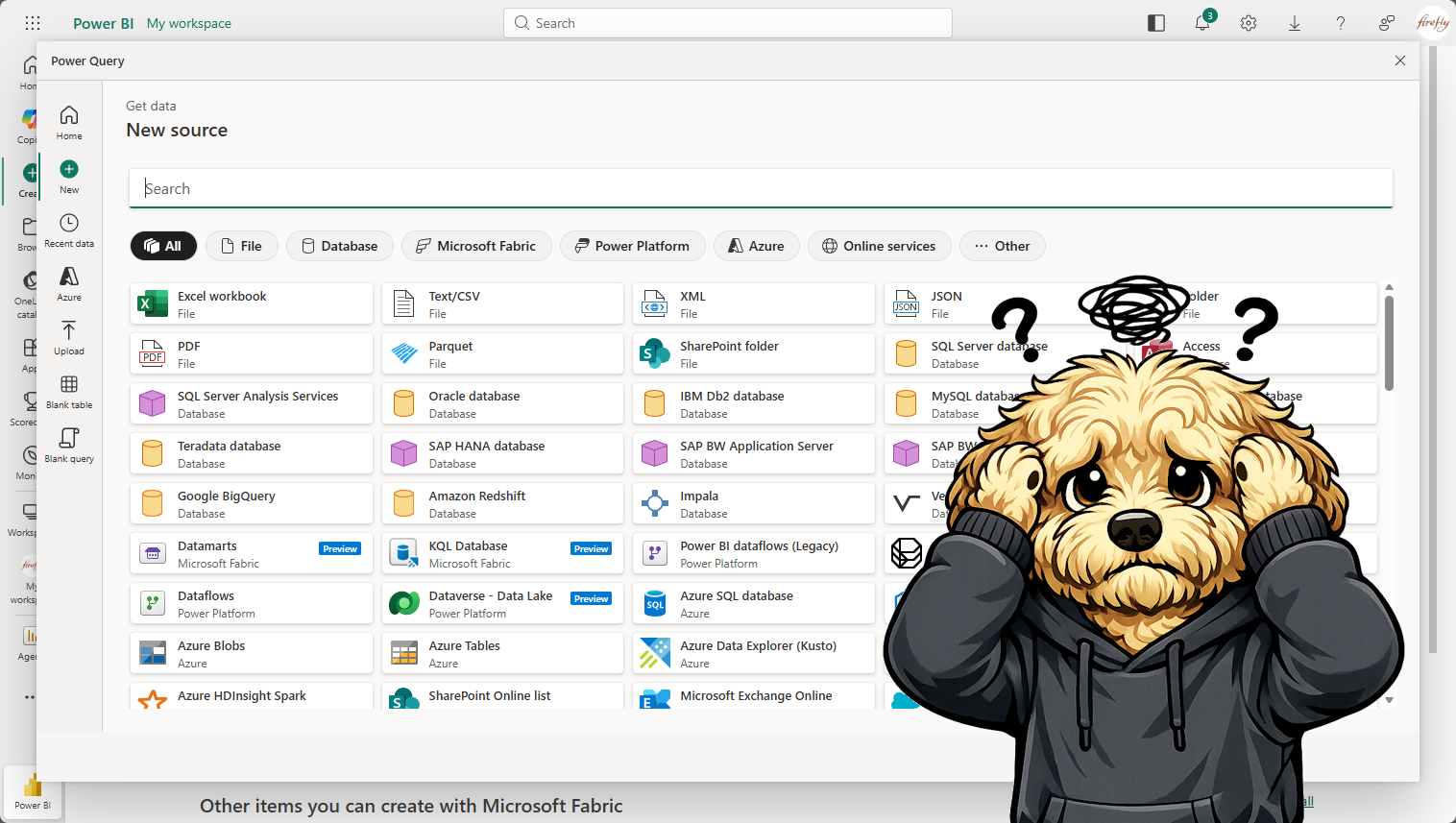
I clicked Report, and the clicked Get Data.
This is where my struggles started! 🤔
I thought since I was connecting to Dataverse, the Dataverse Connector would be the right choice.

I configured the Dataverse Connector for my environment and clicked Next.
I went to select the Agent Details table, and it low and behold it wasn’t there, I could see a bunch of other tables related to the Copilot Studio Kit but not the Agent Details table. 😖

I wondered what was going on here. 💭
What did I miss?
I reviewed 👀 the tables in Power Platform and noticed for the most part, all the tables in the Copilot Studio Kit were Standard tables, except for a few, they were Elastic tables, and the Agent Details table was one of them.
I started asking around and a teammate finally pointed 🫵 me in the right direction.
To access Dataverse tables that are Elastic, you have to use the OData Connector in Power BI.

So I went that route.
I needed to provide a URL in the format of https://.crm.dynamics.com/api/data/v9.2 and then Sign In.

Bingo! There it was the Agent Details table! 🥳

With that, I was able to create my Power BI report.
Never fails, I learn something new every day! Love it! 💗
Discover more from Matt Ruma
Subscribe to get the latest posts sent to your email.