I created a custom engine Agent with Copilot Studio, which I successfully deployed to the Teams and Microsoft 365 Copilot channel.🥳
I configured the Teams and Microsoft 365 Copilot channel to Show to everyone in my org.

This meant I had to Submit it for admin approval, where it would need to be approved in the Teams Admin Center.

I hopped over to Teams, fired up the Agent, and it worked perfectly!
I then proceeded to make a couple of changes to the Agent, specifically:
- Added Suggested prompts
- Updated the Short description and Long description for Teams
- Updated the Icon and the Color for Teams


I Published the Agent.
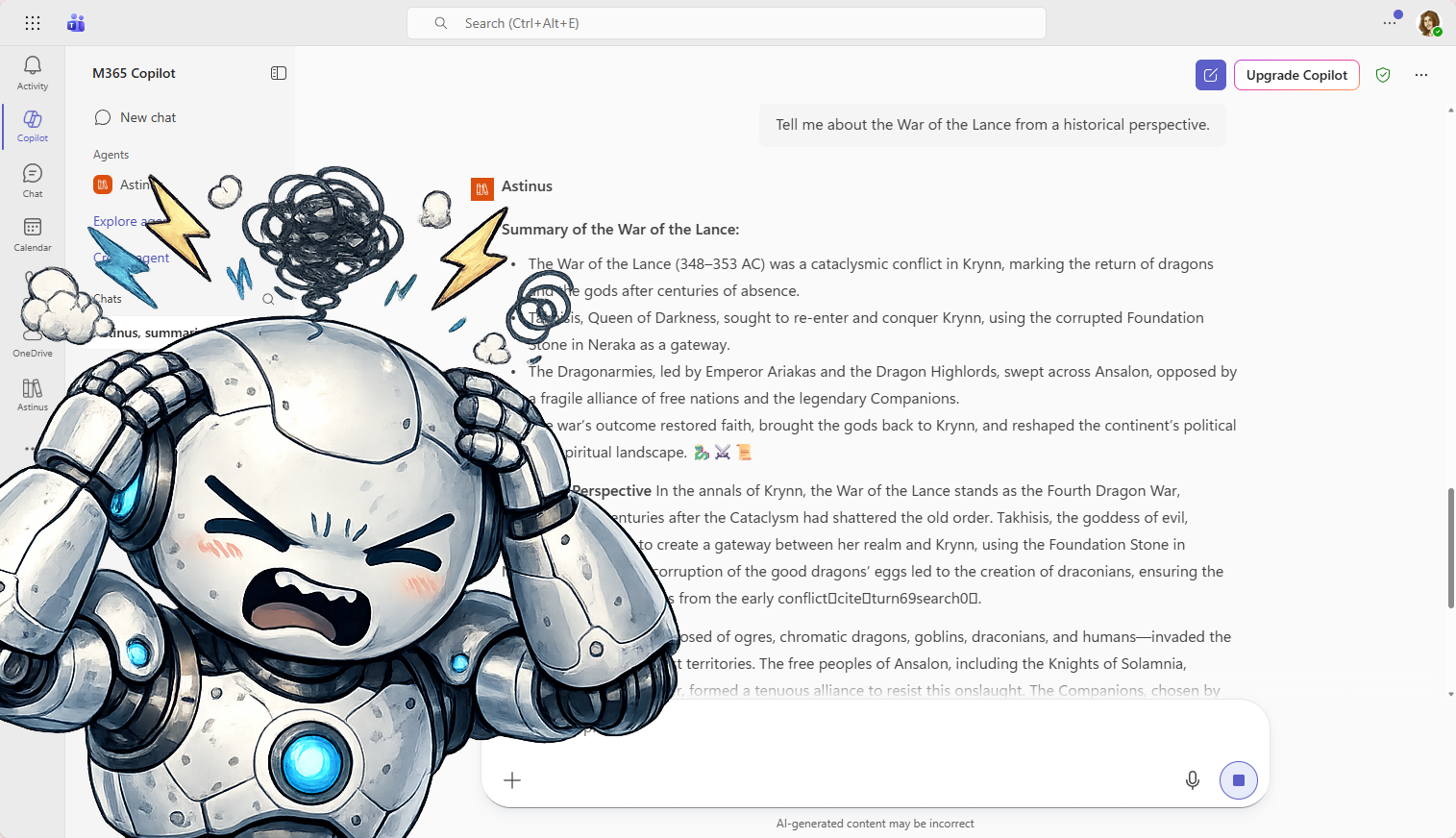
I hopped back over to the Agent in Teams and quickly noticed that none of the changes I made as it related to the Suggested prompts, Icon, Color, Short description or Long description was showing. 😱
Changes to the Agent, like Tools, Topics, Instructions, etc. were all there, but not the Teams configuration changes.
I proceeded to hit the Publish button another time, then another, waited 5 minutes, 15 minutes, a full day, and nothing.😤
What was going on? I was puzzled. 🫤
I spent countless hours, more than I care to admit, trying to figure out what I was doing wrong.
I assumed the Publish action would take care of the updates.
Needless to say, that was a bad assumption. 📛
I finally found the answer at Connect and configure an agent for Teams and Microsoft 365 Copilot – Microsoft Copilot Studio | Microsoft Learn. 💡

I navigated back to the configuration settings for the Teams and Microsoft 365 Copilot channel, clicked Show to everyone in my org and then clicked Submit for admin approval.

I navigated over to Teams Admin and published the latest changes.

After a few minutes ⌛, everything successfully updated and reflected correctly in Teams.
What were the lessons learned? 🧑🎓
There is no connection between Publish in Copilot Studio, and the Teams manifest that is created, other than the first time you configure the channel! Zip! Zero!
Users who already installed the agent from a shared link or from the Built with Power Platform section of the Teams app store don’t see changes to an agent’s details.
Users must reinstall the agent to get the updates. 👈
For agents already approved by an admin, you must submit the agent again for approval. 👈
If you already knew this, then where were you when I needed your help?!😀
If not, hopefully this saves you some time and minimizes some frustration.
Discover more from Matt Ruma
Subscribe to get the latest posts sent to your email.