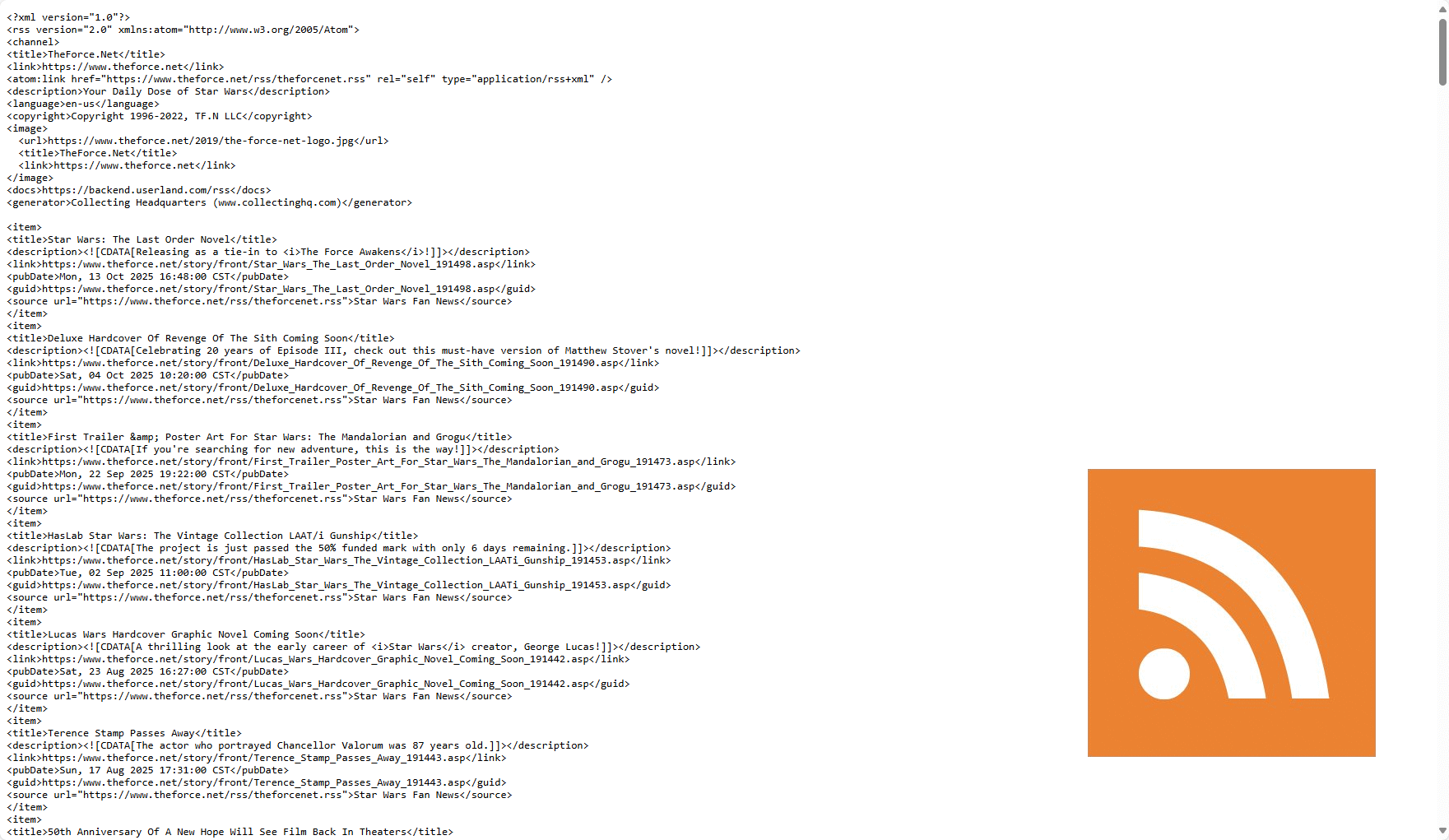
Is it possible to use an RSS Feed as a knowledge source in Copilot Studio?
The short answer, no. ☹️
There is no way to add an RSS Feed as a knowledge source like you would with a public website, SharePoint site, Dataverse, etc.
This got me to thinking, I can create an Agent Flow that runs on a scheduled interval. 📅
So, I got to work. ⚒️
Dataverse Table
I decided to store the contents of the RSS Feed in a Dataverse table, which could then be used as a Knowledge Source in a Copilot Studio Agent.
First thing I did was create a Table called Star Wars Agent V2 Feed, with the columns: ⚒️
- Description
- Published On
- Link

Agent Flow
Next, I was ready to start on the Agent Flow. ⚒️
I started by adding a Recurrence trigger, I set mine to run every Saturday. ➕

I thought about using the RSS – Connectors to get the contents of the feed, the challenge though, I wanted it to support a more complex XML schema that the standard RSS Feed, so I opted to use the HTTP connectors in Power Automate instead. 🤔
The RSS Feed that I wanted to import was https://www.theforce.net/rss/theforcenet.rss.
I added a HTTP action. ➕
- URI
https://www.theforce.net/rss/theforcenet.rss - Method
GET

Once I had the XML response, I would need to convert it to JSON.
I added an Initialize variable action. ➕
- Name
XMLToJSON - Type
Object - Value
json(xml(string(body('HTTP_-_Get_XML'))))
I then added a Parse JSON action. ➕
- Content
variables('XMLToJSON')?['rss']?['channel']?['item']
For the value of Schema I clicked Use sample payload to generate schema and pasted in the results of https://www.theforce.net/rss/theforcenet.rss.

Now I needed to loop through each item in the feed and determine whether to add a new row to the Dataverse table or update an existing row.
I added a For each action, using the Body from the Parse JSON action as the value of Select an output from previous steps. ➕
I added a List rows action to help with determining if the item needed to be added or updated. ➕
- Table name
Star Wars Agent V2 Feeds - Filter rows
demo_name eqBody title`

The pubDate in the Feed was not in the correct format and all times were in CST, so with some help from Copilot I was able to get it formatted correctly as a Date.
I added a Compose action and set Inputs to convertTimeZone(parseDateTime(replace(join(take(split(items('For_each_-_XMLToJSON')?['pubDate'], ' '), 5), ' '), ',', ''), 'en-US'), 'Central Standard Time', 'UTC', 'yyyy-MM-ddTHH:mm:ssZ'). ➕
I added a Condition action to determine whether to add a new row or update an existing row, using length(outputs('List_rows_-_Feed')?['body/value']) is equal to 0 as the test. ➕

To add a new row, I added a Add a new row action to the True side of the Condition action.
- Table name Star Wars Agent V2 Feeds
- Name
items('For_each_-_XMLToJSON')?['title'] - Description
items('For_each_-_XMLToJSON')?['description']?['#cdata-section'] - Link
items('For_each_-_XMLToJSON')?['source']?['@@url'] - Published On
outputs('Compose_-_Published_On')
To update and existing row, I added an Update a row action to the False side of the Condition action.
Most of the property values were the same as the Add a new row action, except I also provided a value for Row Id of the unique identifier of the row from the List rows action.
Note, it does add an Apply to each action, because the List rows action could return more than one row, it won’t, but it could.

The Agent Flow was complete! 🥳🎉
I ran it once, to do the initially load of the data.
With the help of Agent Flows and Dataverse, I could now use the RSS Feed as a Knowledge Source in my Copilot Studio Agent!👏
Discover more from Matt Ruma
Subscribe to get the latest posts sent to your email.