
I ran into a challenge where I wanted to filter a Dataverse table on a Choices column, which allowed for multiple selection.
The challenge? There is no easy way to do this in a Power App using Filter without running into delegation issues. 😔
Whenever I run into challenges like this, I usually default to solving it with a FetchXML query in Power Automate.
I decided I would pass in a comma separated list of Values for Choices to a Power Automate flow and then build the FetchXML dynamically, only to learn there was no easy way to get the Label and Value for a Choice! 🤬

The only way I could figure out how to do this was by using the Dataverse API.
So, I needed to solve that problem first before I could move on to the Power Automate flow that does the FetchXML query.
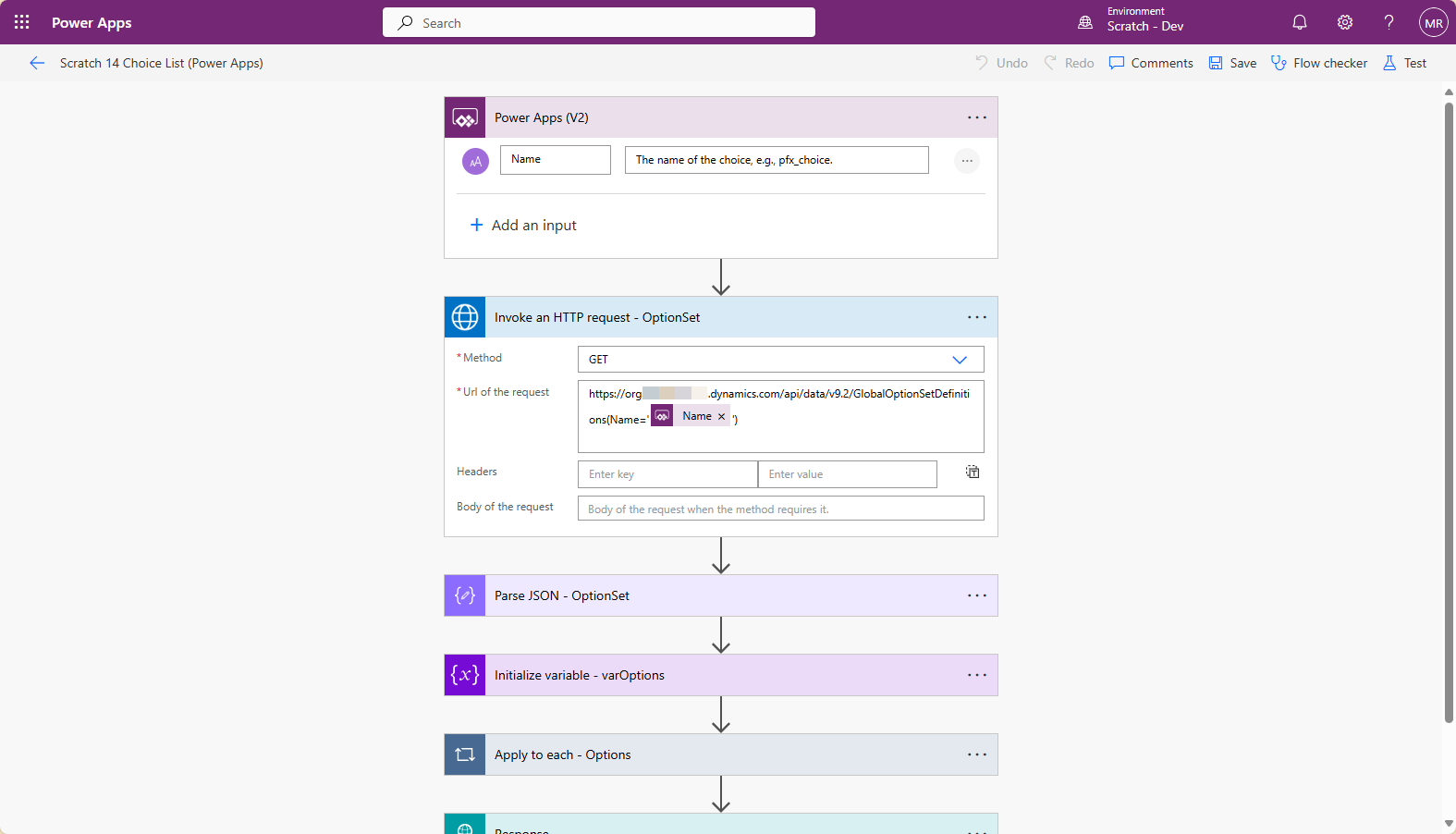
I will be calling this from a Canvas App, so I started with a Power Apps (V2) trigger with one parameter for the Name of the Choice, this way I could reuse it if I needed to do so.
The Name is the logical name, e.g., scratch_scratch14choice.
I added an action to Invoke an HTTP request using the HTTP with Microsoft Entra ID (preauthorized) connector.
For the connection I set the Base Resource URL and Microsoft Entra ID Resource URI (Application ID URI) to the URL of the Environment, e.g., https://orgaXXXXXX.crm.dynamics.com.

In the Invoke an HTTP request action, I set Method to GET.
I set the Url of the request to https://orgaf4da323.crm.dynamics.com/api/data/v9.2/GlobalOptionSetDefinitions(Name='@{triggerBody()?['text']}').

The JSON returned is a bit much – more than I expected! 😀
I was able to streamline the results to just returning the Id and Name using the Parse JSON action from the Data Operations connector along with an Array variable.
Took a little bit to figure out which LocalizeLabels was the correct one to use to populate the array variable.
I returned the JSON using the Response action and was able to consume it in my Canvas App! 🥳

If there is an easier way, please share! 🙏
Discover more from Matt Ruma
Subscribe to get the latest posts sent to your email.