I have a Dataverse table for capturing board games with attachments enabled.📎

I wanted to create a Canvas App that displayed the board games and any notes and attachments that were available.
Pretty straight forward. ✔️

When it came to editing a board game, I wanted to display a list of the notes and if there was an attachment, allow the user to download the attachment.
I added a Gallery and set the Items property to the Notes property of the selected board game.
For the Item Template for the Gallery, I added a Container and withing the Container three controls, two Text fields and an HTML Text field.
- Set Text field
Textproperty to"Modified on " & ThisItem.'Modified On'& " by " & ThisItem.'Modified By'.'Full Name'. - Set Html Text field
Textproperty toThisItem.Description. - Set Text field
Textproperty toThisItem.'File Name'.
Gallery done, looking good!

The challenge came when I wanted to allow the user to download the file. 😕
There didn’t seem anything I could do in line with PowerFX, and I didn’t want to use the Attachments control like others suggested.
I opted for creating a flow.
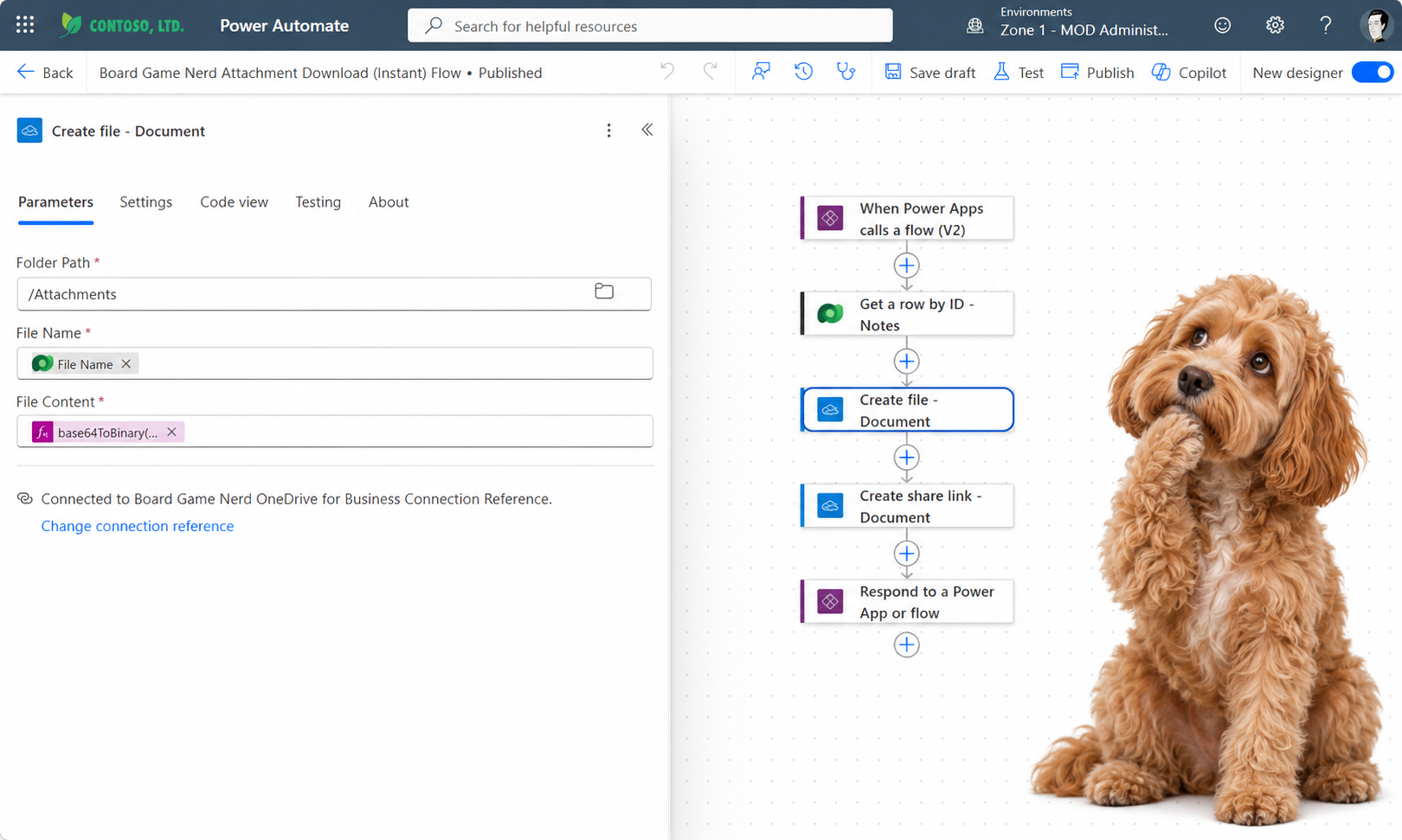
My flow would take the unique identifier of the Note as parameter, get the Note, then create a file along with sharing link that could be passed back to the Power Apps.

As usually there was one gotcha. 😩
In the Create file action I needed to set the File Content property to base64ToBinary(outputs('Get_a_row_by_ID_-_Notes')?['body/documentbody']). 😀

I added the flow to my Canvas App.
I set the OnSelect property of the Text control that displayed the File Name to the following:
Set(VarResult, 'BoardGameNerdAttachmentDownload(Instant)Flow'.Run(ThisItem.Note));
Launch(VarResult.web_url);
The first line calls the Flow, passing the unique identifier of the Note. After the call is completed, the second line opens up the returned link in a new browser window.

When I clicked on the File Name it downloaded the attachment! 🥳
Mission accomplished!
Download the complete solution at https://mattruma.com/wp-content/uploads/2026/09/BoardGameNerdSolution_1_0_0_1.zip.
Discover more from Matt Ruma
Subscribe to get the latest posts sent to your email.